Physical Address
304 North Cardinal St.
Dorchester Center, MA 02124
Physical Address
304 North Cardinal St.
Dorchester Center, MA 02124

On Minecraft mobile, bedrock worlds don’t have export buttons. This doesn’t mean you can’t access or export application worlds on mobile. I’ll show you how to access them in two ways: using a free resource pack and without one.
Let’s start with the pack. This will allow you to access the export button, so you can safely back up your Minecraft worlds. It works on both phones and tablets, running on Android and IOS systems. The best part is that no PC is required.
If you encounter any errors. I will explain what they are and how to fix them.
Table of Contents
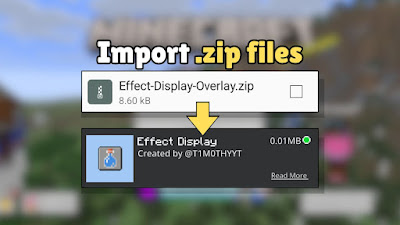
Now, to get started, you need to install the “Import/Export Button Unhider” for MCPE. This is the free resource pack for Minecraft mobile, which was made by faizul. That will bring back the export button and is available on CurseForge and MCPEDL.
Open any file explorer of your choice, and create a folder for your worlds to go.
After that, tap on the “import/Export Button unhider” pack to open it in Minecraft. Tap on the pen icon next to the world, scroll down to resource packs > available pack and activate it.
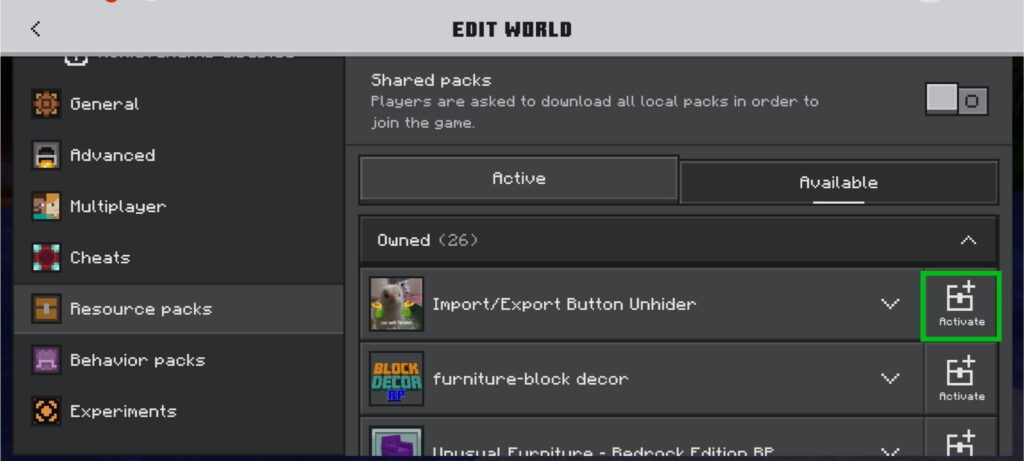
Open the world you want to export. Once you are in the world, pause the game, go into the settings, and scroll down.
Tap on the new “Export” button, which opens your file explorer automatically. Tap on the folder you created earlier, then click “Use this folder.”
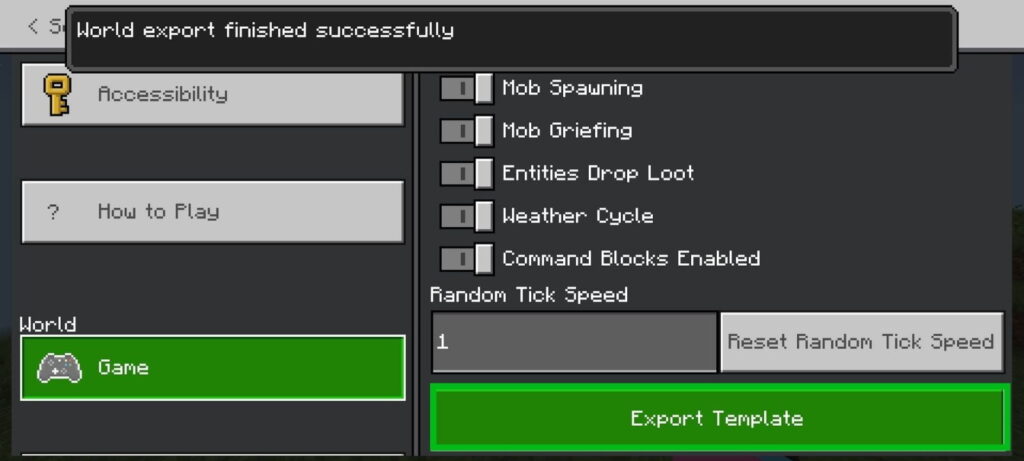
When that’s completed, you will see a ‘World Export successfully’ pop-up. Exit Minecraft, then open your file explorer and navigate to your folder to view your world.
Long-press on the world file, click on rename, then remove the “.mctemplate” and add “.mcworld.”
Test your world after exporting!
Tap the .mcworld and open it in Minecraft.
Load up the world and view Structures, chunks, test components, etc, to make sure it’s working correctly.
This is not in sync. If you make any new changes to your Minecraft world after exporting, you have to export your world again for the new changes to save.
If the pack works, switch to external, so if the pack doesn’t work in the future, you can access your worlds using file explorers.
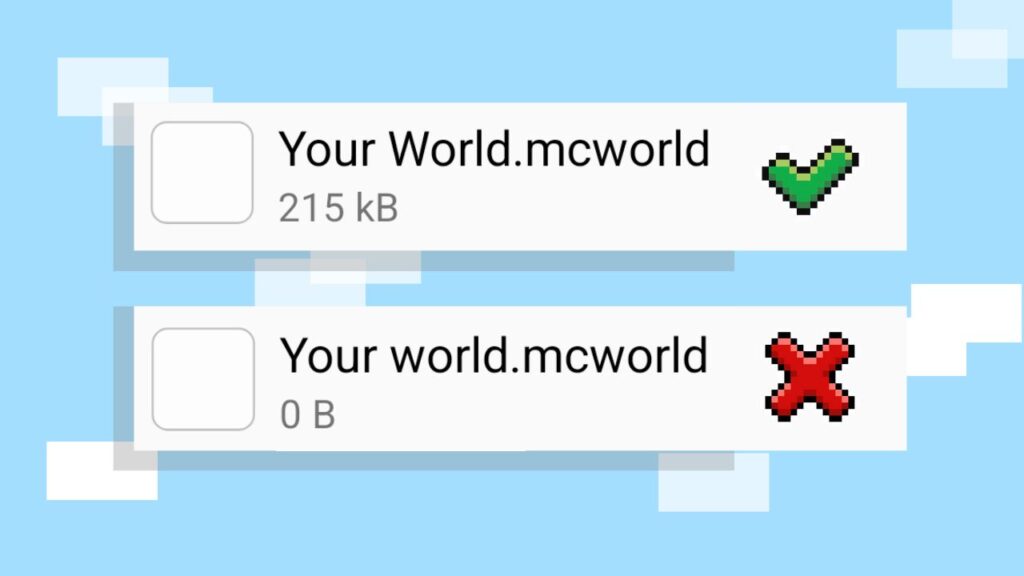
The world should not have 0 MB; this means there has been an error. These can be caused by glitches, game updates, or even low storage. Thankfully, there are solutions for these issues.
If the world has 0 MB after exporting, exit Minecraft and close any open tabs on your device.
In your device’s settings, go to apps > Minecraft> storage, clear the “cache.”
Then export the world offline (no Wifi).
If there’s no cache available, clear the ‘download cache’ in the Minecraft settings instead. Open Minecraft > Settings (on the home menu) > go to “storage” and clear “downloads cache”
Try exporting again while offline.
Both tasks can be done to temporarily reduce lag on Minecraft mobile. This can fix the glitch in some cases.
Have at least 5 GB of storage available on your device so that the world can export properly.
Back up special files on flash drives/cloud storage.
Minecraft crashes when exporting your worlds if the device has insufficient random access memory (RAM).
To fix this, move to a place with little to no mobs, like going to a flat land, an empty cave tunnel or standing on a block in the void. This puts less pressure on the RAM, reducing the chance of lag.
If none of these methods works, there is one last solution. The “realm method”
How to use realms to export application worlds on mobile Minecraft.
If you are unable to export your application worlds using packs, you can upload them to realms and then download them to your device. No packs are required for this method.
First, tap on the pencil icon next to your world, and make sure multiplayer is turned on.
Click “play on realms.”
Tap “new world” and select the world you want to export. When that’s finished, tap on the world you just uploaded, click “edit world”, and scroll down to “download world”
On Minecraft realms, you can only upload 3 worlds at a time. So if more than 3 worlds are stuck on application settings, click “replace world” near the download button. To repeat this process.
What to do when your realm subscription or trial ends? Consider reading this article about Minecraft Realms vs Servers to make the best choice when upgrading.
To sum up, there are a few ways to access your Minecraft world when it’s stuck in the application. One way can be done using a free resource pack, while the other doesn’t require any packs. Everything works on mobile, so no PC is needed. Thanks for reading, and I know there’s a method here that should work for you!