
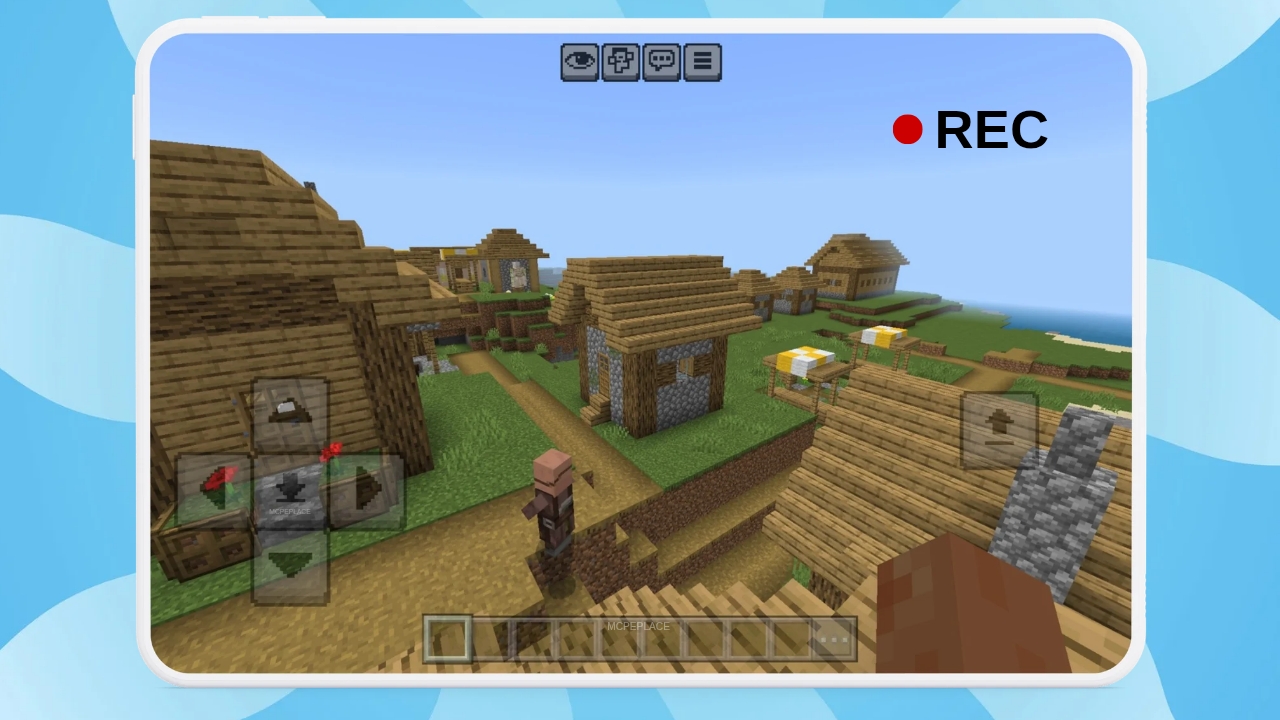

I have been experiencing lag on my tablet for a year now due to the older software and 4GB RAM. It wasn’t enough to record my Minecraft videos any more. Every new set of Minecraft versions will cause lag, as the render engine continues to improve. This was tough, since I showcase add-ons in-game, and that uses up a lot of RAM.
After testing various ways to fix lag in Minecraft. I found the most effective ways, and I was able to improve my FPS. My FPS went from 15 – 30FPS to 30 to 55FPS while recording.
Did you know that concrete in Minecraft can fix lag? Sounds strange, but it really works! These tips and settings work for anyone playing Minecraft Bedrock on Android, iOS, or Windows.
Why adjusting graphics may not work for you.
Almost every video I watch says to adjust the settings, like lower FOV, render distance, turn off smooth lighting, and fancy graphics.
What if you need those things? FOV is important in PvP fights. Render Distance is needed when playing survival, and smooth lighting and graphics are a must-have when recording (for aesthetics).
So tweaking these settings is not always ideal for different types of players. Since I do all of the above, I had to find other ways to fix lag in Minecraft.
Table of Contents
Concrete Block Method
First was the “concrete block method”
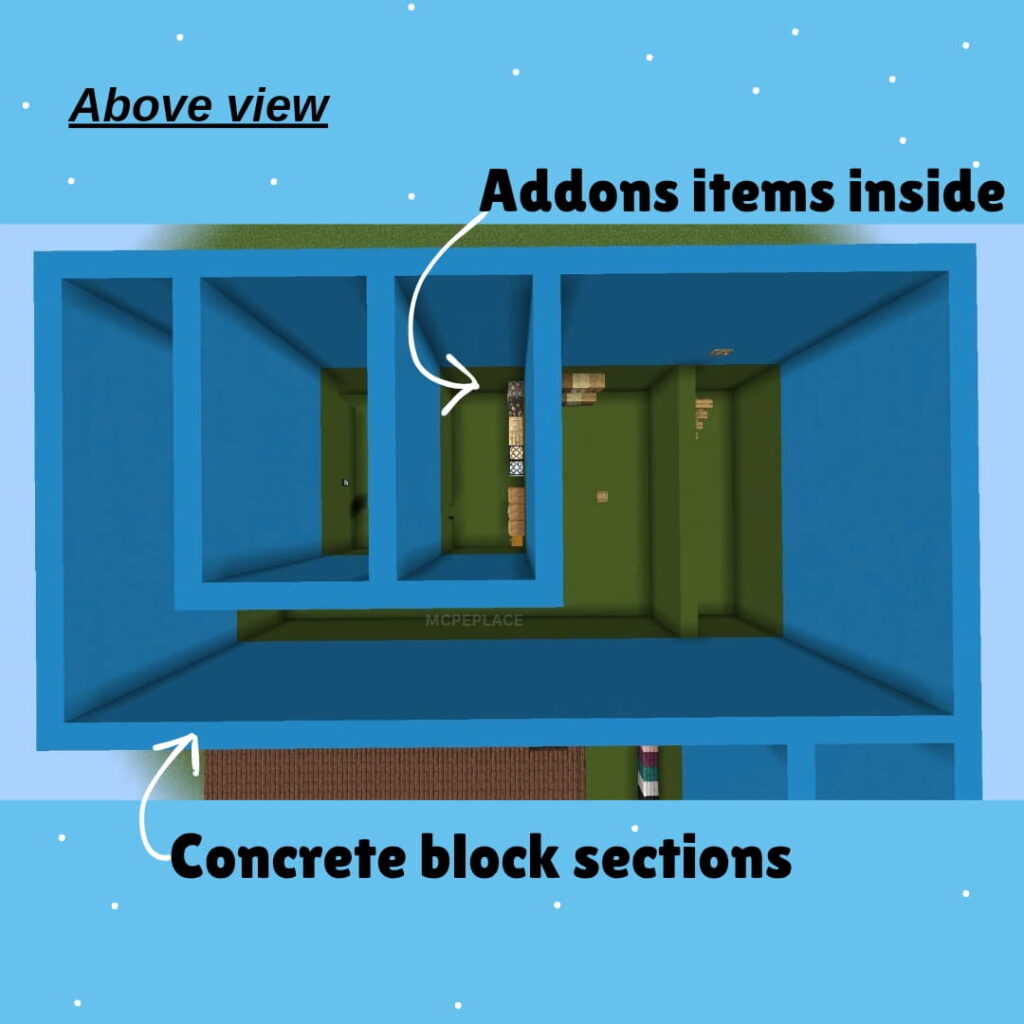
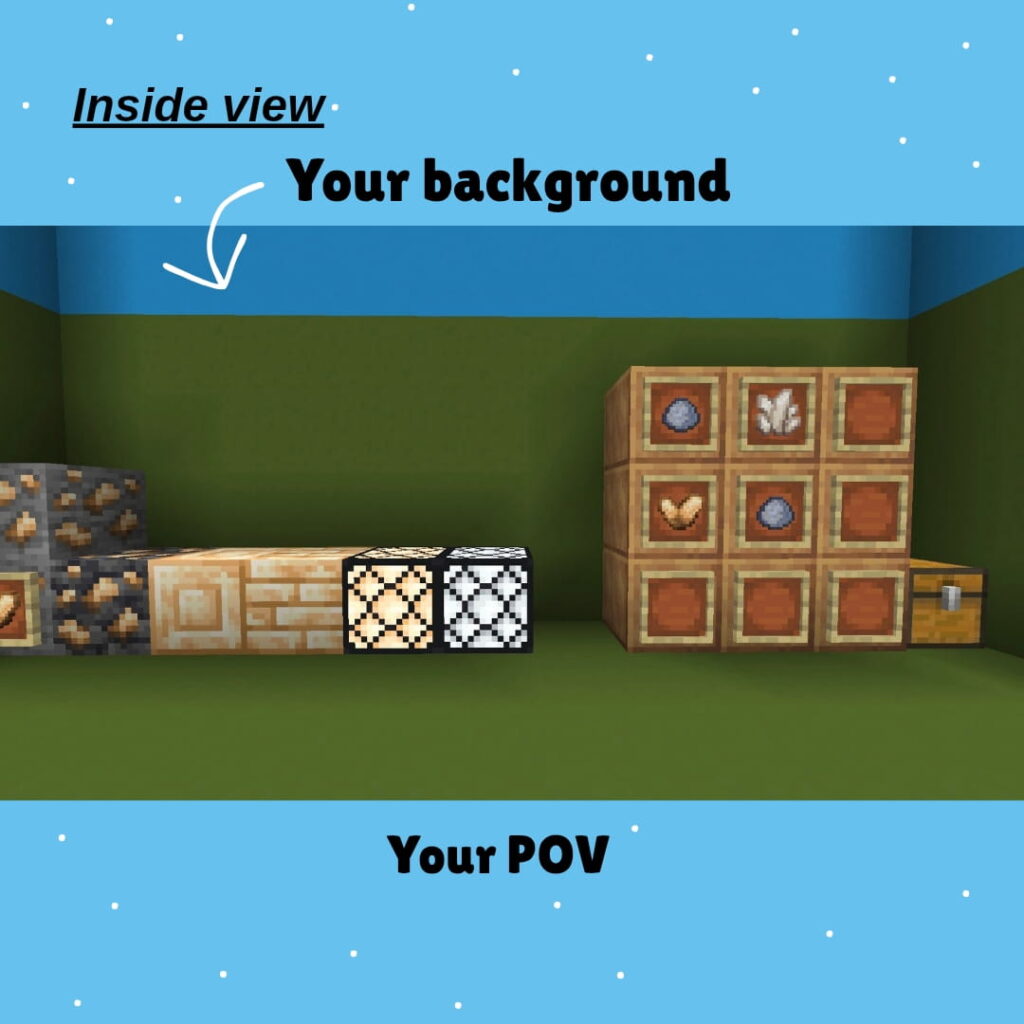
Concrete blocks in Minecraft have less detailed textures compared to grass blocks. So I used those as my background, then I created different sections made of concrete, each containing items from the add-on I wanted to showcase. This reduced lag significantly by putting less pressure on the RAM. I was able to record a 12-minute video on my tablet with no crashes,
This can be seen in the images down below:
Optimise your Settings in Minecraft
The sun is needed in survival mode, smooth lighting for good visuals when recording, and FOV for PvP fights. Only adjust the settings to what you feel most comfortable with, to help fix lag in Minecraft.
In the settings, go to video, then lower your render distance. The less blocks and textures Minecraft has to load, the smoother your gameplay will be. Also, in the same video settings, scroll down to “UI Profile” and switch from classic to pocket.
Classic Layouts are more detailed and sometimes animated if you enable add-ons or texture packs. Unfortunately, changing this means that most custom UIs from add-ons or packs will not work. Also, turning off render clouds can reduce lag.
Finally is screen animations; turn this off. Animations can put too much pressure on the RAM.
Turning off Sun and Smooth lighting, or lowering FOV, can work. In some cases, those settings can be important.
Close unnecessary background applications
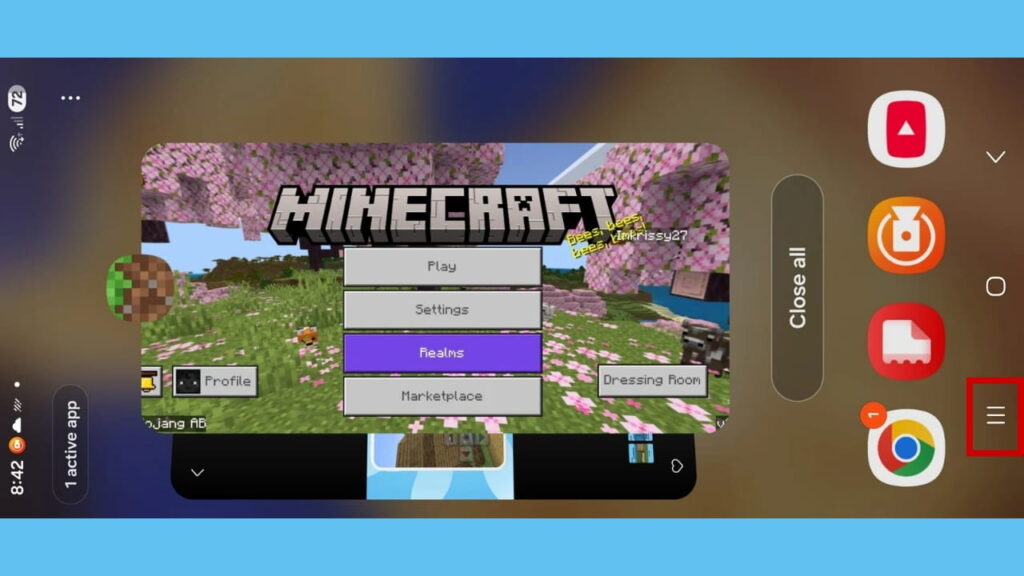
On your device, the applications that you were previously using will be running in the background. These background applications will take up too much RAM, causing lag in your gameplay and app crashes. To close these apps; swipe the screen, click on the 3 lines and remove the apps by swiping upwards on them.
Free up your storage and clear your cache.
Low storage can cause stuttering in Minecraft. If you have a lot of unnecessary files, videos or photos that you don’t want any more, you should delete them. If the photos and videos are important, you can store them on a FlashDrive, an SD card, or Cloud storage. Since deleting files can take a while, spend a few minutes every day deleting unwanted files.
How to clear app cache on Android.
STEP 1: Go to the settings app, and scroll down until you see ‘battery and device care’ or ‘storage’. (Here, you will see all the files that are taking up storage; you can click on the ones that you want to see.
STEP 2: Scroll down to ‘App Cache’ and clear that. Don’t worry; it wouldn’t affect the apps. The cache is random storage used by apps, similar to R.A.M.
I clear the app cache and delete unnecessary videos, photos and files every week, to avoid clutter or build-up.
Read Now: Storage Mistakes to Avoid and 5 ways to Expand Storage on your tablet, and phone.
Update Minecraft and your software.
Keeping Minecraft up-to-date allows the game to run smoothly, and can fix performance issues. Since these updates patch previous bugs and glitches. The same for your phone as well. Make sure that you schedule and install software updates on your phone when notified.
Turn off automatic updates and notifications
It is important to keep applications up-to-date; that’s why the Play Store has automatic updates. However, this can take up some of your device’s R.A.M. which causes lag while playing Minecraft on mobile. Therefore, it is best to manually update the apps in this case.
Also, keep background apps closed or turn off notifications on certain apps temporarily to prevent these notifications from popping up while playing Minecraft and other games.
To turn off automatic updates in the Google Play Store: Click on your profile, scroll down to ‘settings’, then tap ‘Network Preferences’, then ‘Auto-update apps’ and turn off automatic updates.
Multiplayer Tips that can fix lag
These 5 tips I’ll share can be combined with the ones above when playing in multiplayer. First, move as close to your WI-FI router as possible. WI-FI signals are not always strong, especially when multiple people are using the same WI-FI. Not only that, it can depend on the network choice, subscription choice, etc.
I used to experience lag when I played on Minecraft servers and multiplayer worlds. It turns out that all we needed to do was to turn off WIFI on other devices.
Turn off WI-FI on devices
Sounds strange, but doing this can fix most lag issues found in multiplayer worlds and servers in Minecraft. If there are other devices connected to the Wi-Fi that are not in use, you can turn off the Wi-Fi on those.
To turn off Wi-Fi on Android and IOS, swipe down near the top of the phone screen and click on the Wi-Fi symbol.
We used to share our Wi-Fi with people who lived nearby. This caused 95% of my lag issues in the server and other multiplayer worlds. The other 5% was low R.A.M (3GB) on my device. Many people using one network at one time can cause problems, especially if the network is not optimised for that. In that case, we had to remove those devices.
Install your own Ethernet or Wi-Fi router
If you are unable to remove extra devices or move closer to use Wi-Fi, you can consider connecting an Ethernet cable or your own Wi-Fi router.
Ethernet is faster and has a more reliable connection with less latency (less delay). You would connect your device directly to your router using a wire. It is a great option for gaming PCs and consoles because it isn’t affected by walls, other wireless devices, or signal interference.
Wi-Fi connects devices wirelessly, which is more convenient for mobile devices like laptops, phones, and tablets. It is also fast enough to play on servers and multiplayer worlds, as long as you’re not far away from the router’s signal.
Check the Server, realm or world connection
Servers and realms that are located far away from where you live, can lag sufficiently. This is because the data from your end takes longer to reach the server’s end, between that time you may experience other players and mobs lagging or stuttering. Furthermore, Interactions such as tapping on menus, placing and breaking blocks will be very delayed or will take a long to load. This could also happen if the server isn’t properly optimised and the connection is weak on their end.
That’s why popular Minecraft servers, such as the Hive Network, allow you to change your location or region to the one closest to you.
When paying for a server host you will select the location or region that is closest to you and your audience. Or, depending on the server hosting provider, you could change it later in the settings.
Unplug the Charger
Something as simple as playing Minecraft while your device is charging can cause lag and even overheating issues. Always let your device charge first because if there is a power surge or a power breaker trip, that can cause stuttering in the gameplay, or it can even crash the game.
I’ll admit I do play while my device is charging if I need to prepare for a video and don’t have time to charge it. Personally, I wouldn’t do this with a brand new device.
To sum up, you don’t always need to adjust or turn off your important settings to fix lag in minecraft, especially if you need good graphics while recording. Having habits like monitoring your RAM and storage, ensuring you have steady connectivity and keeping the games and device up-to-date can fix or prevent lag altogether.